
Installing Applications
Your Mac Mini is configured as a managed environment designed for maximum uptime, security, and performance. Because of this, application installation works slightly differently than a personal Mac.
Applications should be installed in the Desktop Applications folder located on the Desktop. Please do not attempt to move applications into the system Applications folder as this location is restricted.
Using Google Chrome or your preferred browser, download the application as you normally would.
Most applications will download as either:
.dmgfiles.zipfiles- Standalone application files (
.app)
Step 2: Open the Download
Section titled “Step 2: Open the Download”Locate the downloaded file in your Downloads folder and open it.
If the application is packaged as a .dmg file, macOS will mount it and display the application’s installation window.
Step 3: Move the Application
Section titled “Step 3: Move the Application”Instead of dragging the application into the system Applications folder, drag it into the Desktop Applications folder provided on your Mac Mini.
This folder functions as your dedicated application directory.
Step 4: Launch the Application
Section titled “Step 4: Launch the Application”Open the Desktop Applications folder and launch the application normally.
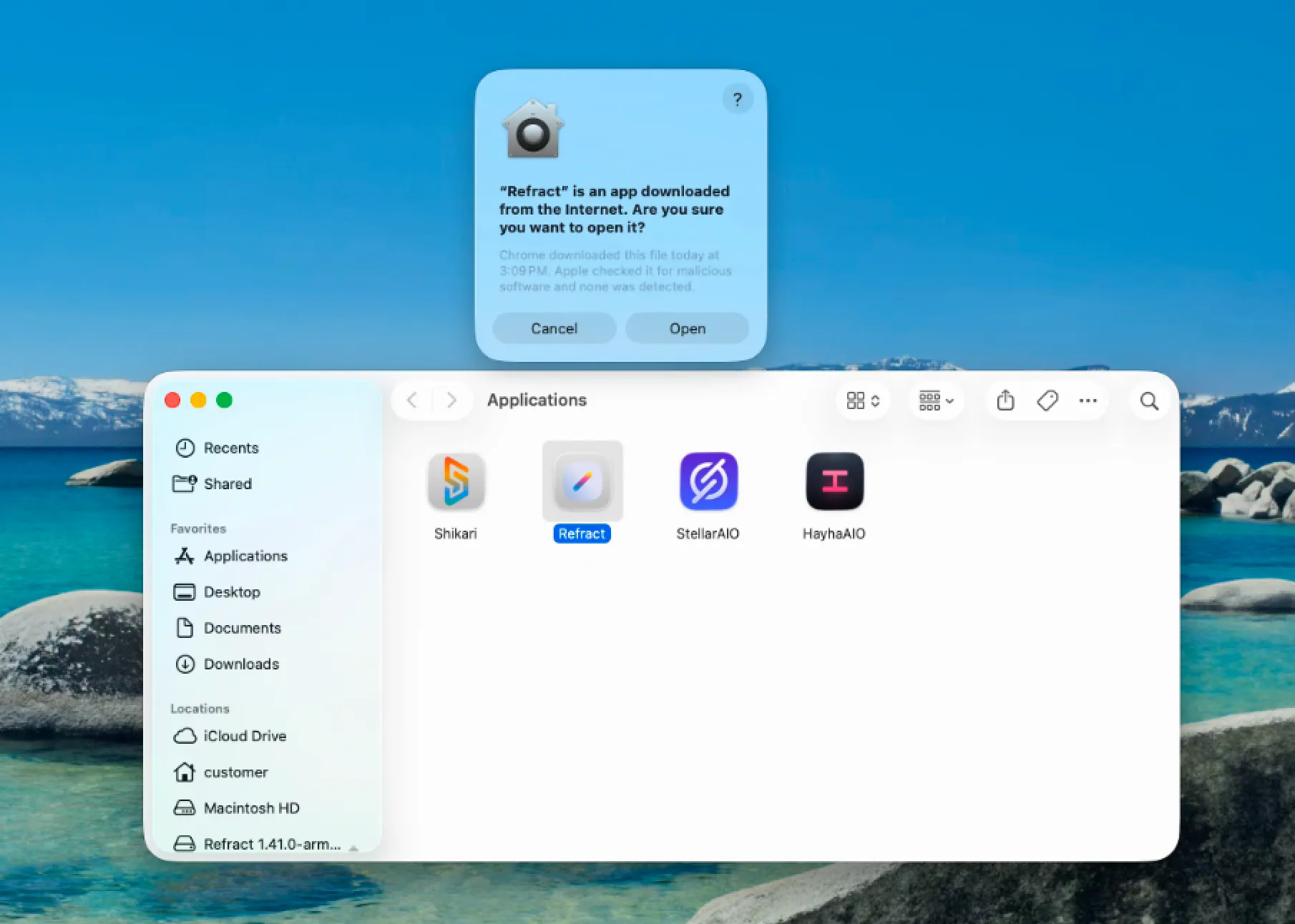
Applications That Require Administrator Access
Section titled “Applications That Require Administrator Access”Some software requires elevated permissions or administrator access to install drivers, system extensions, or background services.
Examples may include:
- VPN software
- Security software
- Certain automation tools
- Network monitoring utilities
- Hardware management applications
If an application requests administrator credentials during installation, please contact support for assistance.
Updating Applications
Section titled “Updating Applications”Most applications can be updated normally through their built-in update mechanisms.
If an update requires administrator privileges, please contact support.
Common Installation Issues
Section titled “Common Installation Issues”“You do not have permission”
Section titled ““You do not have permission””This usually means the application is attempting to install into a protected system location.
Try installing the application into the Desktop Applications folder instead.
Application Requests an Administrator Password
Section titled “Application Requests an Administrator Password”Customer accounts do not have administrator access.
Please contact support if the application cannot function without elevated permissions.
Application Will Not Open
Section titled “Application Will Not Open”Some applications downloaded from the internet may be blocked by macOS security settings.
If you encounter this issue, contact support and provide:
- Application name
- Download source
- Screenshot of the error message
Our team can review the application and assist if needed.
Need Help?
Section titled “Need Help?”If you’re unsure whether an application is supported, open a support ticket before installing. We are happy to verify compatibility and provide installation guidance.